Calendar Integration Chatbot: How to Connect and Set It Up
Calendar Integration Chatbot: How to Connect and Set It Up
Insights
17 min

A calendar integration chatbot reads your real availability, offers open slots in a conversation, and writes the confirmed appointment straight into your calendar. No form, no back-and-forth emails, no double bookings. To get there you need three things: a chatbot that can call a calendar or scheduling API, the right permissions on your calendar account, and a clear set of booking rules. This guide walks through all three, step by step, so you can have your chatbot booking appointments around the clock.
DroxyTurn Chats Into BookingsDroxy lets businesses deploy no-code AI agents for customer interactions, with appointment booking and API or Zapier integration.Explore Droxy
TL;DR
A calendar-connected chatbot checks free and busy times, proposes slots, creates the event, and sends confirmation, all inside the chat.
Most setups connect through the calendar’s API (Google Calendar) or a scheduling tool’s API (Calendly), or through an automation layer such as Zapier.
Before you start, have admin access to the calendar, a clear list of services and durations, and your buffer, hours, and time zone rules written down.
Plan for cancellations and rescheduling from day one, and test with real edge cases before you go live.
Droxy’s no-code platform includes appointment booking and API/Zapier integration, so you can build this without writing code.
Table of Contents
What a calendar-integrated chatbot actually does
Which calendars and booking tools can a chatbot connect to?
What you need before you start
How to connect a chatbot to your calendar
How the chatbot checks availability across calendars and time zones
Confirmations, cancellations, and rescheduling
How to test and troubleshoot the integration
Our perspective
Build your booking agent with Droxy
Common mistakes to avoid
Sources
What a calendar-integrated chatbot actually does
Without a calendar connection, a chatbot can only collect a name and a phone number and hope someone calls back. With one, it finishes the job. The visitor asks for a time, the bot checks your calendar, and the appointment exists before the conversation ends.
In practice, a good calendar integration handles six tasks:
Reads availability. It asks the calendar which times are free and which are taken.
Offers slots. It suggests two or three options instead of dumping a full grid on the visitor.
Collects details. Name, email, phone, service type, and any question you need answered before the visit.
Creates the event. The booking lands on the right calendar with the right length and notes.
Confirms. The visitor gets a confirmation in chat and usually by email or text.
Manages changes. Cancellations and reschedules update the calendar rather than leaving ghost appointments.
This matters most for businesses where a missed inquiry is a missed sale: home service providers who are on a job site when the phone rings, real estate agents who need to book showings fast, clinics that get patient questions after hours, and hospitality teams fielding reservation requests all day. If you want ideas for scripts in one of those fields, our guide to real estate chatbot ideas that book showings shows how the conversation flows in practice.
Which calendars and booking tools can a chatbot connect to?
There are three common routes, and the right one depends on how you already schedule.
Route | How it works | Best for |
|---|---|---|
Direct calendar API (for example, Google Calendar) | The chatbot queries free/busy data and creates events itself | Teams that live in one calendar and want full control |
Scheduling tool API (for example, Calendly) | The chatbot hands booking to the scheduling tool, which owns the rules | Teams with routing, round-robin, or meeting types already configured |
Automation layer (Zapier or webhooks) | The chatbot sends booking data to a workflow that writes to the calendar | Teams that use less common calendars or want extra steps, like CRM updates |
The direct route gives you the most flexibility. The scheduling-tool route saves you from rebuilding rules you already have. The automation route is the fastest to start, since it needs no code, and it fits the many calendars that do not have a dedicated chatbot connector.
Droxy supports API and Zapier integration with your existing systems, so you can pick whichever route fits your stack instead of changing the way your team already works. If you are comparing the wider field of scheduling software first, see our roundup of AI appointment booking tools.
What you need before you start
Most failed integrations fail on preparation, not technology. Gather these first.
Accounts and permissions
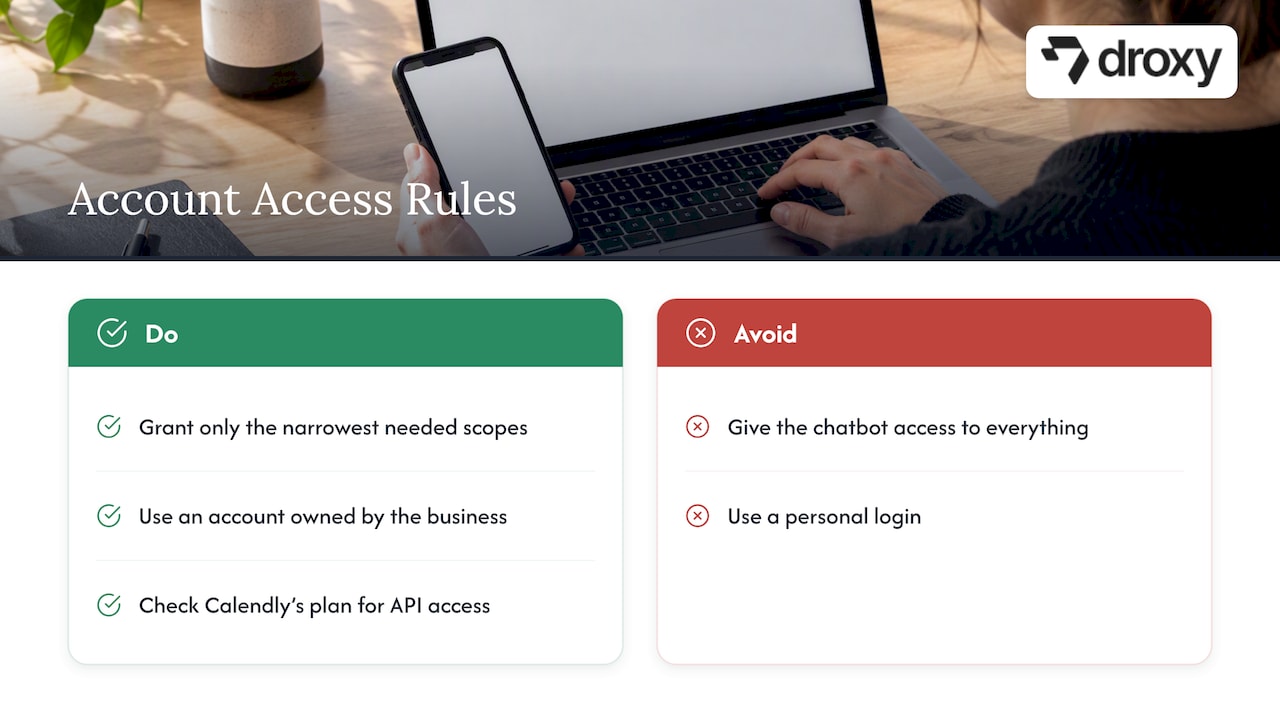
For Google Calendar, an integration signs in through OAuth 2.0 and asks for specific scopes. Google’s developer documentation lists scopes such as calendar.events and calendar.events.freebusy, which let an app manage events or only see free and busy times. Google also notes that clearly described, limited scopes improve security and make people more willing to grant access. For you, that means a simple rule: give the chatbot the narrowest access that does the job. If it only needs to see when you are busy and add events, it does not need access to everything in your account.
For Calendly, check your plan. Calendly states that applications calling its Scheduling API need a paid plan. If you are a solo coach or trainer just starting out, a dedicated personal trainer calendar app with built-in self-service bookings is another way to cover the scheduling side while your chatbot handles the first conversation.
In both cases, use an account that belongs to the business, not a personal login that disappears when someone leaves.
Booking rules
Write these down before you configure anything:
Services and durations. A 30-minute estimate and a 2-hour installation are different bookings.
Working hours per person or per location.
Buffers. Travel time, cleanup, or prep between appointments.
Minimum notice. For example, no bookings less than two hours ahead.
Booking window. How far into the future visitors can book.
Required information. Only what you truly need, since every extra question lowers completion.
Knowledge for the bot
The chatbot should also know your prices, service areas, and policies, so it can answer questions before it books. Droxy can pull knowledge from multiple sources, which keeps the booking conversation and the answers consistent.
How to connect a chatbot to your calendar
The exact screens differ by platform, but the sequence is the same.
Step 1: Choose the channel
Decide where bookings will start. Website chat is the usual first choice. Many businesses then add WhatsApp, Instagram, Facebook, or phone, because customers book where they already talk to you. Droxy covers all of these, with dedicated agents for the website, phone, and WhatsApp.
Step 2: Authorize the calendar
Sign in with the business account and approve the permissions. If the platform requests more access than the booking flow needs, pause and check why. Remember the narrow-scope principle above.
Step 3: Pick which calendars count
Decide which calendars decide availability. A common mistake is connecting only the booking calendar while a personal or team calendar holds conflicts. Select every calendar whose events should block time.
Step 4: Define appointment types
Create one type per service, each with a duration, buffer, and the questions to ask. Name them the way customers speak: “Free estimate” works better than “Service Type A.”
Step 5: Write the booking conversation
Keep it short. A strong flow looks like this:
Ask what the visitor needs.
Offer two or three time options.
Ask for name and contact details.
Repeat the booking back (service, date, time, time zone).
Confirm and explain how to change it.
Droxy lets you customize the agent’s tone so the conversation sounds like your brand rather than a script.
Step 6: Add human hand-off
Some requests do not fit a slot: an emergency repair, a complex medical question, a large group booking. Set the bot to pass these to a person, with the conversation attached, so nobody repeats themselves.
How the chatbot checks availability across calendars and time zones
Under the hood, the cleanest approach is a free/busy query. Google’s Calendar API includes a free/busy method that returns availability for a set of calendars, taking a start and end time and an optional time zone. That is exactly what a chatbot needs: it sees when each calendar is occupied without reading event titles or details, which also helps privacy.

For multiple calendars, the bot combines the busy blocks and offers only times that are free for the person who will do the job. For a team, it can look at several people and assign the booking to whoever is open.
Time zones without the confusion
Time zones cause more broken bookings than any other detail. Follow these rules:
Store appointments in one consistent reference time, and display them in the visitor’s local time.
Always state the time zone in the confirmation: “Tuesday at 2:00 PM Eastern.”
If your business is local, default to your own zone and ask visitors only when they appear to be elsewhere.
Watch the two weeks around daylight saving changes, when US and other regions switch on different dates.
Confirmations, cancellations, and rescheduling
Booking is the easy half. The harder half is what happens next, and it decides whether your calendar stays accurate.
Confirmations. Send one immediately in chat, and a second by email or text with the date, time, time zone, address or link, and what to bring. Add a reminder before the appointment to cut no-shows.
Cancellations and reschedules. Give people a way to change their booking without calling you. Scheduling tools make this simple: Calendly’s booking response includes cancel and reschedule links, which the chatbot can pass along in its confirmation message. If you write to the calendar directly, have the bot find the existing event, update or delete it, and then confirm the change in plain language.
A few policies to set in advance:
How late can someone cancel without a fee or a note on their record?
Does a reschedule need the same rules as a new booking?
Who gets notified inside your team when something changes?
When the rules are written, the bot can state them clearly, and your staff stop being the ones who deliver them.
How to test and troubleshoot the integration
Test as a skeptical customer, not as the person who built it. Run through this list before launch:
Book a normal slot and confirm it appears on the right calendar, with the right length and details.
Try to book a taken slot. The bot should refuse and offer another.
Book at the edge. First slot of the day, last slot, a slot that collides with a buffer.
Book from a different time zone and check that both sides see the correct time.
Cancel and reschedule and check that the old event disappears.
Make a mistake on purpose. Type an invalid email or change your mind mid-flow.
Trigger the hand-off and check that a human receives the conversation.
If something fails, these are the usual causes:
Symptom | Likely cause | Fix |
|---|---|---|
Bot offers times you are busy | A calendar is not included in the availability check | Add every blocking calendar |
Events appear at the wrong hour | Time zone mismatch between calendar and bot | Align the zone settings and retest |
Booking fails with a permission error | The authorization expired or scope is too narrow | Reconnect the account and review the scopes |
Double bookings | Two systems write to the calendar without checking each other | Route all booking through one flow |
No confirmation arrives | Email or text step is not configured | Check the notification settings and spam folders |
Privacy checks
Appointment data is personal data, and in healthcare it may be sensitive. Before launch:
Request only the permissions you need and review them periodically.
Collect only the details required for the visit.
Avoid putting sensitive reasons for a visit into calendar event titles that many staff can see.
Tell visitors in the chat how their information is used.
If you operate in a regulated field, such as healthcare, confirm your obligations with your compliance advisor before you collect health information in a chat.
Our perspective
Most businesses think of a chatbot as a place to answer questions. We think of it as the front desk that never goes home. The moment a customer asks “Can I come in Thursday?”, the answer should be a confirmed appointment, not a promise to call back.
That is why we built Droxy around agents that act, not just talk. Appointment booking, lead capture, smart routing, and human hand-off sit in the same no-code platform, and the agent connects to your existing systems through API and Zapier. Your calendar stays the source of truth, and your customers get an instant answer on the channel they chose, whether that is website chat, WhatsApp, Instagram, Facebook, or the phone.
We also see how much the details matter: the tone that matches your brand, the multilingual replies, the analytics that show where visitors drop off. Get the booking flow right, and the chatbot stops being a cost center and starts filling your schedule.
Elena
Build your booking agent with Droxy
Droxy lets you deploy an AI agent that answers customers instantly, captures leads, and books appointments, with no code required. Plans start at $16 per month on the Basic plan, with Advanced from $80 and Enterprise from $240, and agencies can white-label agents for their own clients.
Start with the channel where most of your inquiries arrive. For many businesses that is the website agent, and you can add WhatsApp, Instagram, Facebook, or phone as your volume grows. If you want to try it first, you can open the Droxy app and set up your first agent.
Common mistakes to avoid
Offering too many choices. Three slots convert better than a full week grid, because the visitor decides faster.
Skipping the hand-off. A bot that cannot escalate frustrates the customers with the most valuable requests.
Ignoring buffers. Back-to-back bookings look efficient until travel time or cleanup is missing.
Forgetting the reschedule path. If changing a booking is harder than making one, people just do not show up.
Never reviewing conversations. Read a sample of chats each week. You will spot confusing questions and missing services quickly.
Connecting everything at once. Launch on one channel and one appointment type, then expand.
If you are still deciding between a simple scripted bot and something more capable, our explainer on the difference between an AI agent and a chatbot will help you choose. And if your bookings feed a spreadsheet, the guide to connecting a chatbot to Google Sheets shows a simple way to log them.
FAQ
Can a chatbot book appointments directly in Google Calendar?
Yes. A chatbot can connect through the Google Calendar API, check free and busy times, and create events once the visitor picks a slot. You authorize it with OAuth, and it is best to grant only the scopes the booking flow needs.
Do I need a paid Calendly plan to connect a chatbot?
If the chatbot calls Calendly’s Scheduling API, yes. Calendly states that applications using that API need a paid plan. Check your current plan on Calendly’s developer page before you build.
Can the chatbot handle cancellations and rescheduling?
Yes, if you design for it. With a scheduling tool, the bot can share the cancel and reschedule links returned with each booking. With a direct calendar connection, the bot can look up the event, change or remove it, and confirm the update to the customer.
How do I stop double bookings?
Make sure every calendar that can block time is included in the availability check, and route all bookings through a single flow. Then test by trying to book a slot that is already taken. The bot should decline and offer another time.
Do I need to know how to code?
Not with a no-code platform. You connect your calendar, set appointment types and rules, and write the conversation in plain language. Automation tools like Zapier cover the cases where a direct connection is not available.
Sources
Recommended
A calendar integration chatbot reads your real availability, offers open slots in a conversation, and writes the confirmed appointment straight into your calendar. No form, no back-and-forth emails, no double bookings. To get there you need three things: a chatbot that can call a calendar or scheduling API, the right permissions on your calendar account, and a clear set of booking rules. This guide walks through all three, step by step, so you can have your chatbot booking appointments around the clock.
DroxyTurn Chats Into BookingsDroxy lets businesses deploy no-code AI agents for customer interactions, with appointment booking and API or Zapier integration.Explore Droxy
TL;DR
A calendar-connected chatbot checks free and busy times, proposes slots, creates the event, and sends confirmation, all inside the chat.
Most setups connect through the calendar’s API (Google Calendar) or a scheduling tool’s API (Calendly), or through an automation layer such as Zapier.
Before you start, have admin access to the calendar, a clear list of services and durations, and your buffer, hours, and time zone rules written down.
Plan for cancellations and rescheduling from day one, and test with real edge cases before you go live.
Droxy’s no-code platform includes appointment booking and API/Zapier integration, so you can build this without writing code.
Table of Contents
What a calendar-integrated chatbot actually does
Which calendars and booking tools can a chatbot connect to?
What you need before you start
How to connect a chatbot to your calendar
How the chatbot checks availability across calendars and time zones
Confirmations, cancellations, and rescheduling
How to test and troubleshoot the integration
Our perspective
Build your booking agent with Droxy
Common mistakes to avoid
Sources
What a calendar-integrated chatbot actually does
Without a calendar connection, a chatbot can only collect a name and a phone number and hope someone calls back. With one, it finishes the job. The visitor asks for a time, the bot checks your calendar, and the appointment exists before the conversation ends.
In practice, a good calendar integration handles six tasks:
Reads availability. It asks the calendar which times are free and which are taken.
Offers slots. It suggests two or three options instead of dumping a full grid on the visitor.
Collects details. Name, email, phone, service type, and any question you need answered before the visit.
Creates the event. The booking lands on the right calendar with the right length and notes.
Confirms. The visitor gets a confirmation in chat and usually by email or text.
Manages changes. Cancellations and reschedules update the calendar rather than leaving ghost appointments.
This matters most for businesses where a missed inquiry is a missed sale: home service providers who are on a job site when the phone rings, real estate agents who need to book showings fast, clinics that get patient questions after hours, and hospitality teams fielding reservation requests all day. If you want ideas for scripts in one of those fields, our guide to real estate chatbot ideas that book showings shows how the conversation flows in practice.
Which calendars and booking tools can a chatbot connect to?
There are three common routes, and the right one depends on how you already schedule.
Route | How it works | Best for |
|---|---|---|
Direct calendar API (for example, Google Calendar) | The chatbot queries free/busy data and creates events itself | Teams that live in one calendar and want full control |
Scheduling tool API (for example, Calendly) | The chatbot hands booking to the scheduling tool, which owns the rules | Teams with routing, round-robin, or meeting types already configured |
Automation layer (Zapier or webhooks) | The chatbot sends booking data to a workflow that writes to the calendar | Teams that use less common calendars or want extra steps, like CRM updates |
The direct route gives you the most flexibility. The scheduling-tool route saves you from rebuilding rules you already have. The automation route is the fastest to start, since it needs no code, and it fits the many calendars that do not have a dedicated chatbot connector.
Droxy supports API and Zapier integration with your existing systems, so you can pick whichever route fits your stack instead of changing the way your team already works. If you are comparing the wider field of scheduling software first, see our roundup of AI appointment booking tools.
What you need before you start
Most failed integrations fail on preparation, not technology. Gather these first.
Accounts and permissions
For Google Calendar, an integration signs in through OAuth 2.0 and asks for specific scopes. Google’s developer documentation lists scopes such as calendar.events and calendar.events.freebusy, which let an app manage events or only see free and busy times. Google also notes that clearly described, limited scopes improve security and make people more willing to grant access. For you, that means a simple rule: give the chatbot the narrowest access that does the job. If it only needs to see when you are busy and add events, it does not need access to everything in your account.
For Calendly, check your plan. Calendly states that applications calling its Scheduling API need a paid plan. If you are a solo coach or trainer just starting out, a dedicated personal trainer calendar app with built-in self-service bookings is another way to cover the scheduling side while your chatbot handles the first conversation.
In both cases, use an account that belongs to the business, not a personal login that disappears when someone leaves.
Booking rules
Write these down before you configure anything:
Services and durations. A 30-minute estimate and a 2-hour installation are different bookings.
Working hours per person or per location.
Buffers. Travel time, cleanup, or prep between appointments.
Minimum notice. For example, no bookings less than two hours ahead.
Booking window. How far into the future visitors can book.
Required information. Only what you truly need, since every extra question lowers completion.
Knowledge for the bot
The chatbot should also know your prices, service areas, and policies, so it can answer questions before it books. Droxy can pull knowledge from multiple sources, which keeps the booking conversation and the answers consistent.
How to connect a chatbot to your calendar
The exact screens differ by platform, but the sequence is the same.
Step 1: Choose the channel
Decide where bookings will start. Website chat is the usual first choice. Many businesses then add WhatsApp, Instagram, Facebook, or phone, because customers book where they already talk to you. Droxy covers all of these, with dedicated agents for the website, phone, and WhatsApp.
Step 2: Authorize the calendar
Sign in with the business account and approve the permissions. If the platform requests more access than the booking flow needs, pause and check why. Remember the narrow-scope principle above.
Step 3: Pick which calendars count
Decide which calendars decide availability. A common mistake is connecting only the booking calendar while a personal or team calendar holds conflicts. Select every calendar whose events should block time.
Step 4: Define appointment types
Create one type per service, each with a duration, buffer, and the questions to ask. Name them the way customers speak: “Free estimate” works better than “Service Type A.”
Step 5: Write the booking conversation
Keep it short. A strong flow looks like this:
Ask what the visitor needs.
Offer two or three time options.
Ask for name and contact details.
Repeat the booking back (service, date, time, time zone).
Confirm and explain how to change it.
Droxy lets you customize the agent’s tone so the conversation sounds like your brand rather than a script.
Step 6: Add human hand-off
Some requests do not fit a slot: an emergency repair, a complex medical question, a large group booking. Set the bot to pass these to a person, with the conversation attached, so nobody repeats themselves.
How the chatbot checks availability across calendars and time zones
Under the hood, the cleanest approach is a free/busy query. Google’s Calendar API includes a free/busy method that returns availability for a set of calendars, taking a start and end time and an optional time zone. That is exactly what a chatbot needs: it sees when each calendar is occupied without reading event titles or details, which also helps privacy.
For multiple calendars, the bot combines the busy blocks and offers only times that are free for the person who will do the job. For a team, it can look at several people and assign the booking to whoever is open.
Time zones without the confusion
Time zones cause more broken bookings than any other detail. Follow these rules:
Store appointments in one consistent reference time, and display them in the visitor’s local time.
Always state the time zone in the confirmation: “Tuesday at 2:00 PM Eastern.”
If your business is local, default to your own zone and ask visitors only when they appear to be elsewhere.
Watch the two weeks around daylight saving changes, when US and other regions switch on different dates.
Confirmations, cancellations, and rescheduling
Booking is the easy half. The harder half is what happens next, and it decides whether your calendar stays accurate.
Confirmations. Send one immediately in chat, and a second by email or text with the date, time, time zone, address or link, and what to bring. Add a reminder before the appointment to cut no-shows.
Cancellations and reschedules. Give people a way to change their booking without calling you. Scheduling tools make this simple: Calendly’s booking response includes cancel and reschedule links, which the chatbot can pass along in its confirmation message. If you write to the calendar directly, have the bot find the existing event, update or delete it, and then confirm the change in plain language.
A few policies to set in advance:
How late can someone cancel without a fee or a note on their record?
Does a reschedule need the same rules as a new booking?
Who gets notified inside your team when something changes?
When the rules are written, the bot can state them clearly, and your staff stop being the ones who deliver them.
How to test and troubleshoot the integration
Test as a skeptical customer, not as the person who built it. Run through this list before launch:
Book a normal slot and confirm it appears on the right calendar, with the right length and details.
Try to book a taken slot. The bot should refuse and offer another.
Book at the edge. First slot of the day, last slot, a slot that collides with a buffer.
Book from a different time zone and check that both sides see the correct time.
Cancel and reschedule and check that the old event disappears.
Make a mistake on purpose. Type an invalid email or change your mind mid-flow.
Trigger the hand-off and check that a human receives the conversation.
If something fails, these are the usual causes:
Symptom | Likely cause | Fix |
|---|---|---|
Bot offers times you are busy | A calendar is not included in the availability check | Add every blocking calendar |
Events appear at the wrong hour | Time zone mismatch between calendar and bot | Align the zone settings and retest |
Booking fails with a permission error | The authorization expired or scope is too narrow | Reconnect the account and review the scopes |
Double bookings | Two systems write to the calendar without checking each other | Route all booking through one flow |
No confirmation arrives | Email or text step is not configured | Check the notification settings and spam folders |
Privacy checks
Appointment data is personal data, and in healthcare it may be sensitive. Before launch:
Request only the permissions you need and review them periodically.
Collect only the details required for the visit.
Avoid putting sensitive reasons for a visit into calendar event titles that many staff can see.
Tell visitors in the chat how their information is used.
If you operate in a regulated field, such as healthcare, confirm your obligations with your compliance advisor before you collect health information in a chat.
Our perspective
Most businesses think of a chatbot as a place to answer questions. We think of it as the front desk that never goes home. The moment a customer asks “Can I come in Thursday?”, the answer should be a confirmed appointment, not a promise to call back.
That is why we built Droxy around agents that act, not just talk. Appointment booking, lead capture, smart routing, and human hand-off sit in the same no-code platform, and the agent connects to your existing systems through API and Zapier. Your calendar stays the source of truth, and your customers get an instant answer on the channel they chose, whether that is website chat, WhatsApp, Instagram, Facebook, or the phone.
We also see how much the details matter: the tone that matches your brand, the multilingual replies, the analytics that show where visitors drop off. Get the booking flow right, and the chatbot stops being a cost center and starts filling your schedule.
Elena
Build your booking agent with Droxy
Droxy lets you deploy an AI agent that answers customers instantly, captures leads, and books appointments, with no code required. Plans start at $16 per month on the Basic plan, with Advanced from $80 and Enterprise from $240, and agencies can white-label agents for their own clients.
Start with the channel where most of your inquiries arrive. For many businesses that is the website agent, and you can add WhatsApp, Instagram, Facebook, or phone as your volume grows. If you want to try it first, you can open the Droxy app and set up your first agent.
Common mistakes to avoid
Offering too many choices. Three slots convert better than a full week grid, because the visitor decides faster.
Skipping the hand-off. A bot that cannot escalate frustrates the customers with the most valuable requests.
Ignoring buffers. Back-to-back bookings look efficient until travel time or cleanup is missing.
Forgetting the reschedule path. If changing a booking is harder than making one, people just do not show up.
Never reviewing conversations. Read a sample of chats each week. You will spot confusing questions and missing services quickly.
Connecting everything at once. Launch on one channel and one appointment type, then expand.
If you are still deciding between a simple scripted bot and something more capable, our explainer on the difference between an AI agent and a chatbot will help you choose. And if your bookings feed a spreadsheet, the guide to connecting a chatbot to Google Sheets shows a simple way to log them.
FAQ
Can a chatbot book appointments directly in Google Calendar?
Yes. A chatbot can connect through the Google Calendar API, check free and busy times, and create events once the visitor picks a slot. You authorize it with OAuth, and it is best to grant only the scopes the booking flow needs.
Do I need a paid Calendly plan to connect a chatbot?
If the chatbot calls Calendly’s Scheduling API, yes. Calendly states that applications using that API need a paid plan. Check your current plan on Calendly’s developer page before you build.
Can the chatbot handle cancellations and rescheduling?
Yes, if you design for it. With a scheduling tool, the bot can share the cancel and reschedule links returned with each booking. With a direct calendar connection, the bot can look up the event, change or remove it, and confirm the update to the customer.
How do I stop double bookings?
Make sure every calendar that can block time is included in the availability check, and route all bookings through a single flow. Then test by trying to book a slot that is already taken. The bot should decline and offer another time.
Do I need to know how to code?
Not with a no-code platform. You connect your calendar, set appointment types and rules, and write the conversation in plain language. Automation tools like Zapier cover the cases where a direct connection is not available.
Sources
Recommended


🚀
Powered by Droxy
Turn every interaction into a conversion
Customer facing AI agents that engage, convert, and support so you can scale what matters.
✨
Learn more
Recent posts
Insights
3 min read
Introducing Agent Memories
Improve your agents' performance with Agent Memories. Prevent agents from repeating the same mistakes by giving them feedback.
Read more

Insights
15 min read
HVAC Marketing in 2025: The Definitive Lead Gen Guide
Discover 15 proven HVAC marketing strategies, plus learn how Droxy's AI website agent converts curious visitors into qualified leads by answering their questions instantly - right when they're most interested in your services.
Read more
Insights
10 min read
10 Best AI Sales Agents in 2025: Tested & Ranked
Discover the top 10 AI sales agents of 2025, designed to enhance lead generation, personalize outreach, and ultimately, close more deals
Read more
Insights
3 min read
Introducing Agent Memories
Improve your agents' performance with Agent Memories. Prevent agents from repeating the same mistakes by giving them feedback.
Read more
Insights
15 min read
HVAC Marketing in 2025: The Definitive Lead Gen Guide
Discover 15 proven HVAC marketing strategies, plus learn how Droxy's AI website agent converts curious visitors into qualified leads by answering their questions instantly - right when they're most interested in your services.
Read more