Two Week Pilot: WhatsApp Auto Replies and Templates for SMBs
Two Week Pilot: WhatsApp Auto Replies and Templates for SMBs
Insights
10 min
WhatsApp Business gives you three native auto-reply tools, greeting messages, away messages, and quick replies, and you can turn them all on in about ten minutes from the app’s Business Tools menu. Each one is a trigger-based, one-way text block: it fires on a condition (a first message, an after-hours contact, a shortcut) but it can’t read what the customer typed back. That’s fine for setting expectations and catching leads overnight. It stops being fine once you’re fielding more than a couple dozen conversations a day, running multiple agents, or need replies that actually respond to what was asked.
TL;DR:
WhatsApp Business auto-replies are effective only for low-volume, simple situations and become limited once handling more than 20 to 30 conversations daily.
Recipient filtering options, such as excluding contacts outside the address book, are crucial for targeting messages appropriately, especially for automating responses to new inquiries versus existing clients.
The native tools do not support content-aware replies, multiple agents, or detailed analytics, requiring upgrades to the Business Platform for advanced features and automation.
Running a two-week pilot to test auto-replies and recipient filters provides valuable insights on their actual effectiveness before scaling up.
AI-powered solutions like Droxy add context-aware responses, multi-agent routing, and human handoff capabilities to overcome native app limitations and improve automation quality.
Table of Contents
How to Set Up WhatsApp Business Auto Reply
Ready-to-Use WhatsApp Business Message Templates
Where Native Auto-Replies Fall Short
Setting SLAs and Tracking What Actually Works
What I’ve Learned Watching SMBs Automate WhatsApp
Why Droxy Is the Natural Next Step
Sources
How to Set Up WhatsApp Business Auto Reply
Every native auto-reply tool lives in the same place: open WhatsApp Business, tap Settings, then Business Tools. From there you’ll see three separate options, each with its own toggle and editor.
Here’s how to configure each one:
Greeting message. Tap “Greeting message,” flip the toggle on, and write the text customers see the first time they message you, or after 14 days of silence. Choose recipients under “Send to,” then save.
Away message. Tap “Away message,” toggle it on, and enter your text. Under “Schedule,” pick one of three options: Always send, Custom schedule (set specific days and hours), or Outside of business hours, which only works once you’ve entered your business hours elsewhere in the app.
Quick replies. Tap “Quick replies,” then the plus icon to create a new shortcut. Type the message (attachments like images or documents are optional), assign a shortcut starting with “/,” and save. During any live chat, type “/” to pull up your saved replies and send one instantly.
Recipient filters apply to both greeting and away messages, and they matter more than most owners realize. You can send to Everyone, Everyone not in your address book, Everyone except… (exclude specific contacts), or Only send to… (a hand-picked list). A landscaping company that wants existing clients to always reach a real person, but new inquiries to get an automated away note, should use “Everyone not in your address book” rather than “Everyone.”
Before you trust any of this with real customers, run a quick test:
Message your business number from a second phone or a friend’s phone to confirm the greeting fires.
Change your away message schedule temporarily and message yourself outside business hours to verify it triggers correctly.
Check that recipient filters are excluding or including the right people by testing with a contact both inside and outside your address book.
Both the away message settings and the broader set of Business Tools require no coding, which is exactly why they’re the right starting point for most small operations.
Ready-to-Use WhatsApp Business Message Templates
Copy these directly into your app, then adjust the specifics to your business. Keep every message under roughly 150 characters, with exactly one call to action. Customers skim on WhatsApp the way they skim a text from a friend, not the way they read an email.
Away messages:
“Thanks for reaching out! We’re closed right now, but we’re open Mon to Sat, 9 AM to 6 PM. We’ll reply as soon as we’re back.”
“We’re closed for the holiday and back on [date]. For urgent orders, reply URGENT and we’ll get to you first thing.”
“Thanks for your message! We’re getting a high volume of inquiries today, so expect a reply within a few hours.”
Greeting messages:
“Hi! Thanks for messaging [Business Name]. What can we help you with today: booking, an order, or a question?”
“Welcome to [Business Name]! Are you reaching out about a new order or an existing one?”
“Hey there! Thanks for contacting us. Quick question first: are you a new or returning customer?”
Lead-capture openers:
“Want to book a visit? Reply BOOK and tell us your preferred day.”
“Ready to order? Reply ORDER with the item and we’ll confirm pricing and pickup time.”
“Need a quote? Reply QUOTE with a short description of the job and we’ll follow up within the hour.”
A dental office might swap “BOOK” language for appointment types, while a home services company might lead with “QUOTE.” The structure works across verticals because it always narrows the conversation down to one action and one expectation.
Where Native Auto-Replies Fall Short
The free app’s automated tools were built for simple expectation-setting, not for running a support desk. Once your volume or complexity grows, the cracks show fast.
Fixed text, no branching. A greeting or away message can’t ask a follow-up question or adjust based on what the customer says.
Single-device limits. The free app ties your business number to one phone, so multiple staff can’t easily share the inbox.
No content-aware replies. None of these tools read incoming text, so “quick replies” only fire when a human staffer manually taps them.
Thin analytics. You get almost no visibility into how many conversations convert, stall, or get abandoned.
Consider upgrading once you’re handling more than 20 to 30 conversations a day, need multiple agents working the same number, or want replies that actually parse and respond to what a customer typed. The WhatsApp Business Platform adds message templates with interactive buttons, context-aware responses, multi-seat routing, and real analytics, along with the option to activate an AI-driven support layer that answers basic questions using your catalog, hours, and location, with customers notified they’re talking to AI.
Pro Tip: Before committing to an API provider, run a two-week pilot on your busiest inbox and track how many conversations a smarter auto-reply would have actually resolved without a human. That number tells you more than any sales pitch.
Setting SLAs and Tracking What Actually Works
Automation only helps if you hold it to a standard. Set a target for immediate bot acknowledgment, aim for under 5 minutes on anything the bot can resolve outright, and commit to under 30 minutes for human replies during staffed hours. Chat speed expectations are set the moment someone messages you, and a slow first response undoes whatever goodwill your greeting message built.
Build in clear handoff triggers so a bot doesn’t try to fake its way through a conversation it can’t handle: low confidence in the query, an explicit request for a human agent, or signs of frustration in the customer’s tone.
Track four numbers weekly:
Bot resolution rate (queries closed without a human)
Escalation rate (how often the bot hands off)
Customer satisfaction on completed chats
Lead conversion from chat to booking, order, or quote
High-volume, low-complexity requests, like order status checks, often make up 30 to 40 percent of total support volume and are your best automation targets. Review a sample of transcripts every week, A/B test wording on your greeting and away messages, and confirm your schedules are still firing correctly as your business hours change with the seasons.
What I’ve Learned Watching SMBs Automate WhatsApp
The businesses that get this right don’t try to automate everything. They automate the predictable 30 to 40 percent of traffic, the “are you open,” “how much,” “where are you” questions, and keep humans on anything with money or a complaint attached. The ones that get it wrong write away messages that ramble for three sentences when one would do, or they never build a handoff plan, so customers get stuck talking to a wall once the bot’s limits are hit.
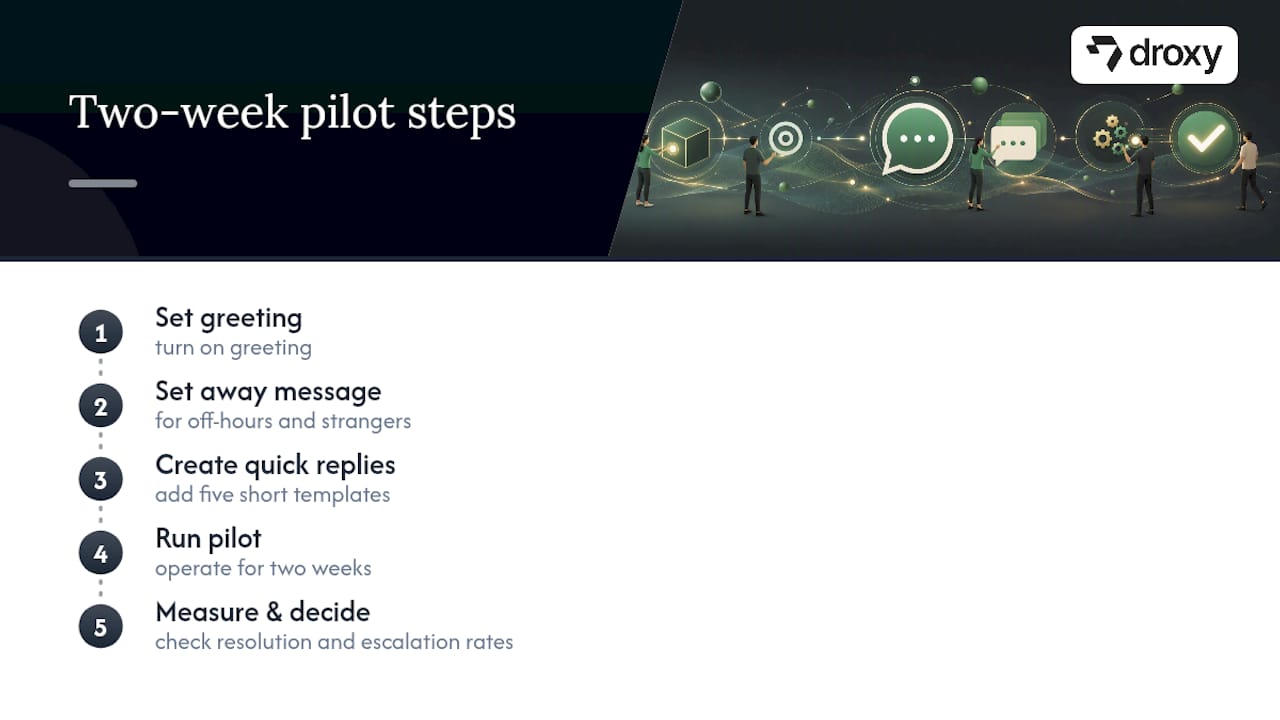
A simple two-week pilot beats months of planning: turn on a greeting, an away message, and five quick replies, run it for two weeks, then check your resolution and escalation numbers before deciding what’s next. Most owners skip testing recipient filters entirely, then wonder why loyal customers are getting a robotic “we’re away” note meant for strangers.
— Elena
Why Droxy Is the Natural Next Step
Once you’ve outgrown greeting messages and quick replies, Droxy gives you a no-code way to deploy an AI agent that actually reads and responds to what customers type on WhatsApp and not just fires a canned block of text. It solves the exact triggers covered above: multi-agent routing when one phone isn’t enough, context-aware replies instead of fixed scripts, and a human hand-off that kicks in the moment a conversation needs a real person.
Beyond WhatsApp, some platforms connect AI agents to website chat, Instagram, and Facebook, with multilingual support and analytics that show resolution and escalation rates in one dashboard, not scattered across separate tools. Some offerings allow agencies managing multiple client accounts to white-label the setup. If you’re running an online shop, pairing WhatsApp automation with Shopify’s own automation tools rounds out the customer journey from first message to completed order.
Check out the WhatsApp AI agent page to see how it fits your setup, compare plans and pricing, and book a demo to test it against your own busiest conversations before you commit.
Sources
Recommended
WhatsApp Business gives you three native auto-reply tools, greeting messages, away messages, and quick replies, and you can turn them all on in about ten minutes from the app’s Business Tools menu. Each one is a trigger-based, one-way text block: it fires on a condition (a first message, an after-hours contact, a shortcut) but it can’t read what the customer typed back. That’s fine for setting expectations and catching leads overnight. It stops being fine once you’re fielding more than a couple dozen conversations a day, running multiple agents, or need replies that actually respond to what was asked.
TL;DR:
WhatsApp Business auto-replies are effective only for low-volume, simple situations and become limited once handling more than 20 to 30 conversations daily.
Recipient filtering options, such as excluding contacts outside the address book, are crucial for targeting messages appropriately, especially for automating responses to new inquiries versus existing clients.
The native tools do not support content-aware replies, multiple agents, or detailed analytics, requiring upgrades to the Business Platform for advanced features and automation.
Running a two-week pilot to test auto-replies and recipient filters provides valuable insights on their actual effectiveness before scaling up.
AI-powered solutions like Droxy add context-aware responses, multi-agent routing, and human handoff capabilities to overcome native app limitations and improve automation quality.
Table of Contents
How to Set Up WhatsApp Business Auto Reply
Ready-to-Use WhatsApp Business Message Templates
Where Native Auto-Replies Fall Short
Setting SLAs and Tracking What Actually Works
What I’ve Learned Watching SMBs Automate WhatsApp
Why Droxy Is the Natural Next Step
Sources
How to Set Up WhatsApp Business Auto Reply
Every native auto-reply tool lives in the same place: open WhatsApp Business, tap Settings, then Business Tools. From there you’ll see three separate options, each with its own toggle and editor.
Here’s how to configure each one:
Greeting message. Tap “Greeting message,” flip the toggle on, and write the text customers see the first time they message you, or after 14 days of silence. Choose recipients under “Send to,” then save.
Away message. Tap “Away message,” toggle it on, and enter your text. Under “Schedule,” pick one of three options: Always send, Custom schedule (set specific days and hours), or Outside of business hours, which only works once you’ve entered your business hours elsewhere in the app.
Quick replies. Tap “Quick replies,” then the plus icon to create a new shortcut. Type the message (attachments like images or documents are optional), assign a shortcut starting with “/,” and save. During any live chat, type “/” to pull up your saved replies and send one instantly.
Recipient filters apply to both greeting and away messages, and they matter more than most owners realize. You can send to Everyone, Everyone not in your address book, Everyone except… (exclude specific contacts), or Only send to… (a hand-picked list). A landscaping company that wants existing clients to always reach a real person, but new inquiries to get an automated away note, should use “Everyone not in your address book” rather than “Everyone.”
Before you trust any of this with real customers, run a quick test:
Message your business number from a second phone or a friend’s phone to confirm the greeting fires.
Change your away message schedule temporarily and message yourself outside business hours to verify it triggers correctly.
Check that recipient filters are excluding or including the right people by testing with a contact both inside and outside your address book.
Both the away message settings and the broader set of Business Tools require no coding, which is exactly why they’re the right starting point for most small operations.
Ready-to-Use WhatsApp Business Message Templates
Copy these directly into your app, then adjust the specifics to your business. Keep every message under roughly 150 characters, with exactly one call to action. Customers skim on WhatsApp the way they skim a text from a friend, not the way they read an email.
Away messages:
“Thanks for reaching out! We’re closed right now, but we’re open Mon to Sat, 9 AM to 6 PM. We’ll reply as soon as we’re back.”
“We’re closed for the holiday and back on [date]. For urgent orders, reply URGENT and we’ll get to you first thing.”
“Thanks for your message! We’re getting a high volume of inquiries today, so expect a reply within a few hours.”
Greeting messages:
“Hi! Thanks for messaging [Business Name]. What can we help you with today: booking, an order, or a question?”
“Welcome to [Business Name]! Are you reaching out about a new order or an existing one?”
“Hey there! Thanks for contacting us. Quick question first: are you a new or returning customer?”
Lead-capture openers:
“Want to book a visit? Reply BOOK and tell us your preferred day.”
“Ready to order? Reply ORDER with the item and we’ll confirm pricing and pickup time.”
“Need a quote? Reply QUOTE with a short description of the job and we’ll follow up within the hour.”
A dental office might swap “BOOK” language for appointment types, while a home services company might lead with “QUOTE.” The structure works across verticals because it always narrows the conversation down to one action and one expectation.
Where Native Auto-Replies Fall Short
The free app’s automated tools were built for simple expectation-setting, not for running a support desk. Once your volume or complexity grows, the cracks show fast.
Fixed text, no branching. A greeting or away message can’t ask a follow-up question or adjust based on what the customer says.
Single-device limits. The free app ties your business number to one phone, so multiple staff can’t easily share the inbox.
No content-aware replies. None of these tools read incoming text, so “quick replies” only fire when a human staffer manually taps them.
Thin analytics. You get almost no visibility into how many conversations convert, stall, or get abandoned.
Consider upgrading once you’re handling more than 20 to 30 conversations a day, need multiple agents working the same number, or want replies that actually parse and respond to what a customer typed. The WhatsApp Business Platform adds message templates with interactive buttons, context-aware responses, multi-seat routing, and real analytics, along with the option to activate an AI-driven support layer that answers basic questions using your catalog, hours, and location, with customers notified they’re talking to AI.
Pro Tip: Before committing to an API provider, run a two-week pilot on your busiest inbox and track how many conversations a smarter auto-reply would have actually resolved without a human. That number tells you more than any sales pitch.
Setting SLAs and Tracking What Actually Works
Automation only helps if you hold it to a standard. Set a target for immediate bot acknowledgment, aim for under 5 minutes on anything the bot can resolve outright, and commit to under 30 minutes for human replies during staffed hours. Chat speed expectations are set the moment someone messages you, and a slow first response undoes whatever goodwill your greeting message built.
Build in clear handoff triggers so a bot doesn’t try to fake its way through a conversation it can’t handle: low confidence in the query, an explicit request for a human agent, or signs of frustration in the customer’s tone.
Track four numbers weekly:
Bot resolution rate (queries closed without a human)
Escalation rate (how often the bot hands off)
Customer satisfaction on completed chats
Lead conversion from chat to booking, order, or quote
High-volume, low-complexity requests, like order status checks, often make up 30 to 40 percent of total support volume and are your best automation targets. Review a sample of transcripts every week, A/B test wording on your greeting and away messages, and confirm your schedules are still firing correctly as your business hours change with the seasons.
What I’ve Learned Watching SMBs Automate WhatsApp
The businesses that get this right don’t try to automate everything. They automate the predictable 30 to 40 percent of traffic, the “are you open,” “how much,” “where are you” questions, and keep humans on anything with money or a complaint attached. The ones that get it wrong write away messages that ramble for three sentences when one would do, or they never build a handoff plan, so customers get stuck talking to a wall once the bot’s limits are hit.
A simple two-week pilot beats months of planning: turn on a greeting, an away message, and five quick replies, run it for two weeks, then check your resolution and escalation numbers before deciding what’s next. Most owners skip testing recipient filters entirely, then wonder why loyal customers are getting a robotic “we’re away” note meant for strangers.
— Elena
Why Droxy Is the Natural Next Step
Once you’ve outgrown greeting messages and quick replies, Droxy gives you a no-code way to deploy an AI agent that actually reads and responds to what customers type on WhatsApp and not just fires a canned block of text. It solves the exact triggers covered above: multi-agent routing when one phone isn’t enough, context-aware replies instead of fixed scripts, and a human hand-off that kicks in the moment a conversation needs a real person.
Beyond WhatsApp, some platforms connect AI agents to website chat, Instagram, and Facebook, with multilingual support and analytics that show resolution and escalation rates in one dashboard, not scattered across separate tools. Some offerings allow agencies managing multiple client accounts to white-label the setup. If you’re running an online shop, pairing WhatsApp automation with Shopify’s own automation tools rounds out the customer journey from first message to completed order.
Check out the WhatsApp AI agent page to see how it fits your setup, compare plans and pricing, and book a demo to test it against your own busiest conversations before you commit.
Sources
Recommended


🚀
Powered by Droxy
Turn every interaction into a conversion
Customer facing AI agents that engage, convert, and support so you can scale what matters.
✨
Learn more
Recent posts
Insights
3 min read
Introducing Agent Memories
Improve your agents' performance with Agent Memories. Prevent agents from repeating the same mistakes by giving them feedback.
Read more

Insights
15 min read
HVAC Marketing in 2025: The Definitive Lead Gen Guide
Discover 15 proven HVAC marketing strategies, plus learn how Droxy's AI website agent converts curious visitors into qualified leads by answering their questions instantly - right when they're most interested in your services.
Read more
Insights
10 min read
10 Best AI Sales Agents in 2025: Tested & Ranked
Discover the top 10 AI sales agents of 2025, designed to enhance lead generation, personalize outreach, and ultimately, close more deals
Read more
Insights
3 min read
Introducing Agent Memories
Improve your agents' performance with Agent Memories. Prevent agents from repeating the same mistakes by giving them feedback.
Read more
Insights
15 min read
HVAC Marketing in 2025: The Definitive Lead Gen Guide
Discover 15 proven HVAC marketing strategies, plus learn how Droxy's AI website agent converts curious visitors into qualified leads by answering their questions instantly - right when they're most interested in your services.
Read more